Removing a Cloud Database, Node, or Cluster
Use the Actions drop-down menu in the upper-right corner of the Cloud
console to manage databases, nodes, and clusters. The menu options are
context-sensitive; the selected action applies to the object currently
highlighted in the navigation panel. To access the menu options,
highlight the name of the cluster object in the navigation panel, and
then open the Actions menu.
Dropping a Node from a Cluster
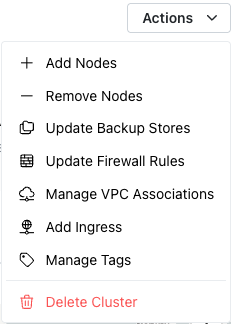
To access the Remove Nodes dialog, highlight the name
of a cluster in the navigation panel and select Remove Nodes from the
Actions menu.
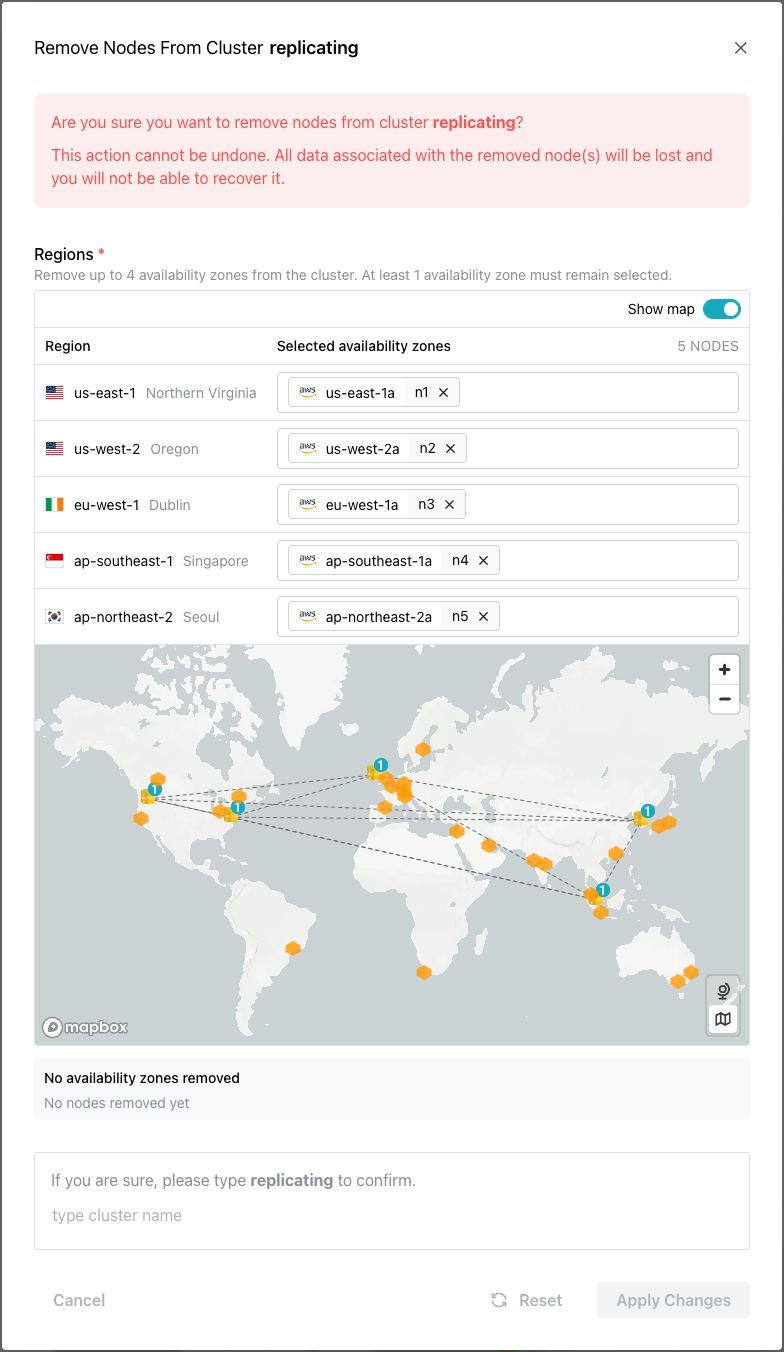
When the Remove Nodes dialog opens, click a node on the map or click
the X in an availability zone name in the Regions section to remove
a node from the specified region. To remove the node and reconfigure
the cluster, enter the cluster name in the confirmation field and click
Apply Changes.
Hint
You may only remove a single node at a time. When working with a multi-node cluster with replication enabled, the cluster cannot drop below two nodes.
Removing a Database from a Node
To drop a database from a cluster node, select the name of the database
in the navigation panel and open the Actions menu.
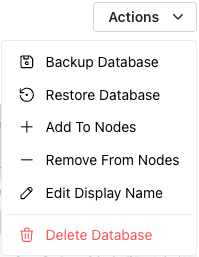
Select Remove From Nodes from the Actions menu to open the Remove
Database dialog. When the dialog opens, deselect the nodes on the map
or from the list of availability zones to indicate which nodes to remove
the database from.
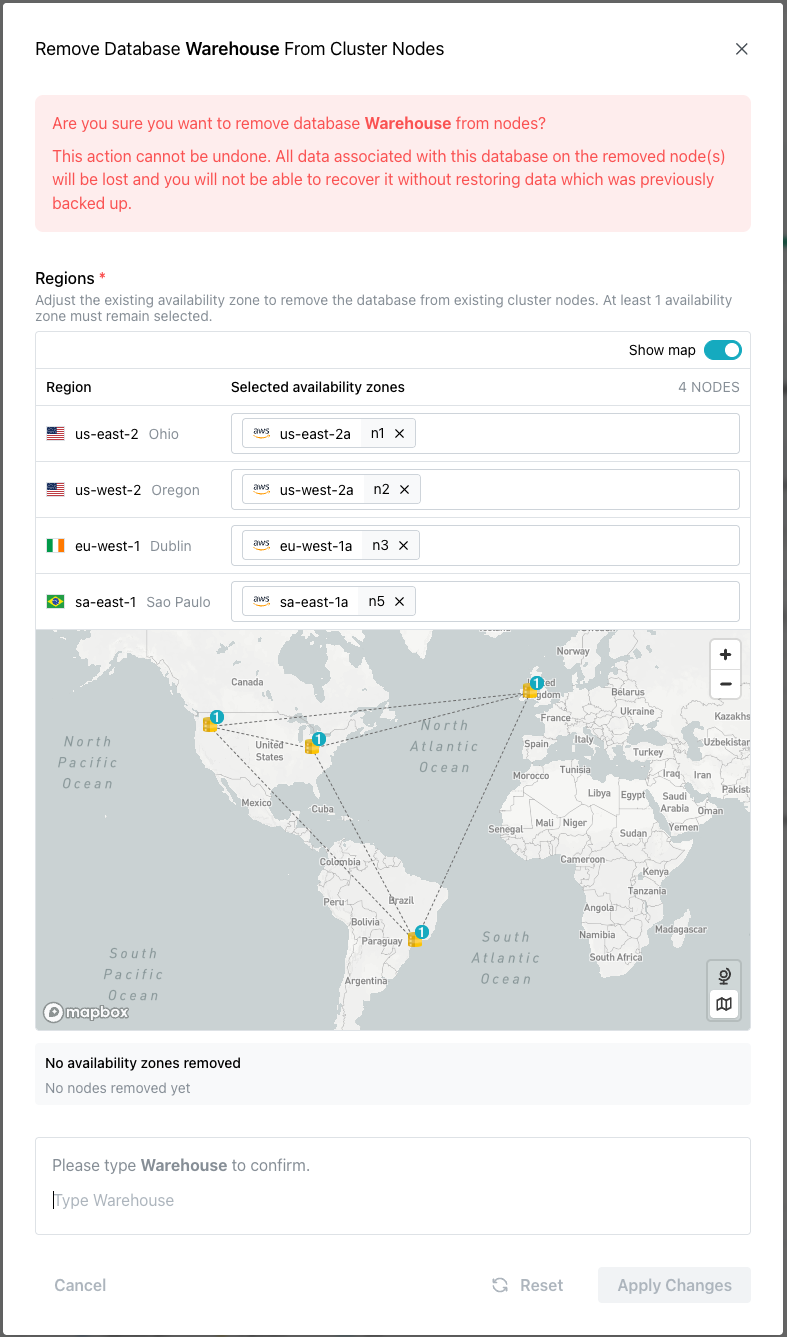
After removing the nodes from the Regions list, type the database name
in the confirmation pane and click Apply Changes. The database is
removed from the node, resulting in the loss of all data on that node;
database backups remain available via the API. The remaining cluster
nodes are then reconfigured to replicate the database between them.
Deleting a Database
To delete a database, highlight the name of the database in the
navigation panel. Open the Actions drop-down in the upper-right
corner and select Delete Database from the context menu.
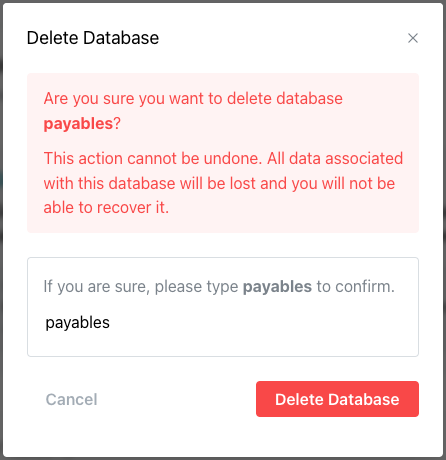
When prompted, enter the database name in the confirmation window and
select Delete Database.
Deleting a Cluster
To delete a cluster, select the cluster name in the navigation panel to
open the cluster information page. Select the Actions drop-down in
the upper-right corner and choose Delete Cluster.
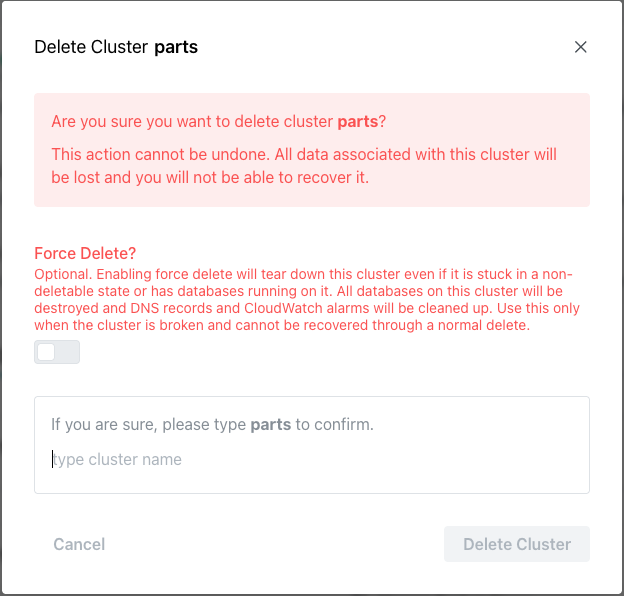
If the cluster contains databases, use the Force Delete slider to confirm
that you wish to delete the cluster, and all cluster resources currently
deployed; this will remove all databases, DNS records, and CloudWatch alarms.
To delete the cluster, enter the cluster name to confirm and press Delete
Cluster (or Force Delete Cluster) to confirm.
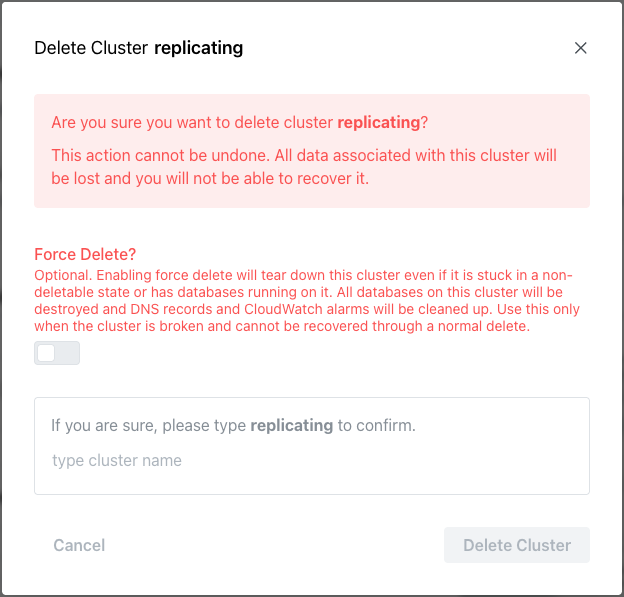
Cloud will alert you if you attempt to delete a cluster that still hosts
databases without selecting the Force Delete option.
